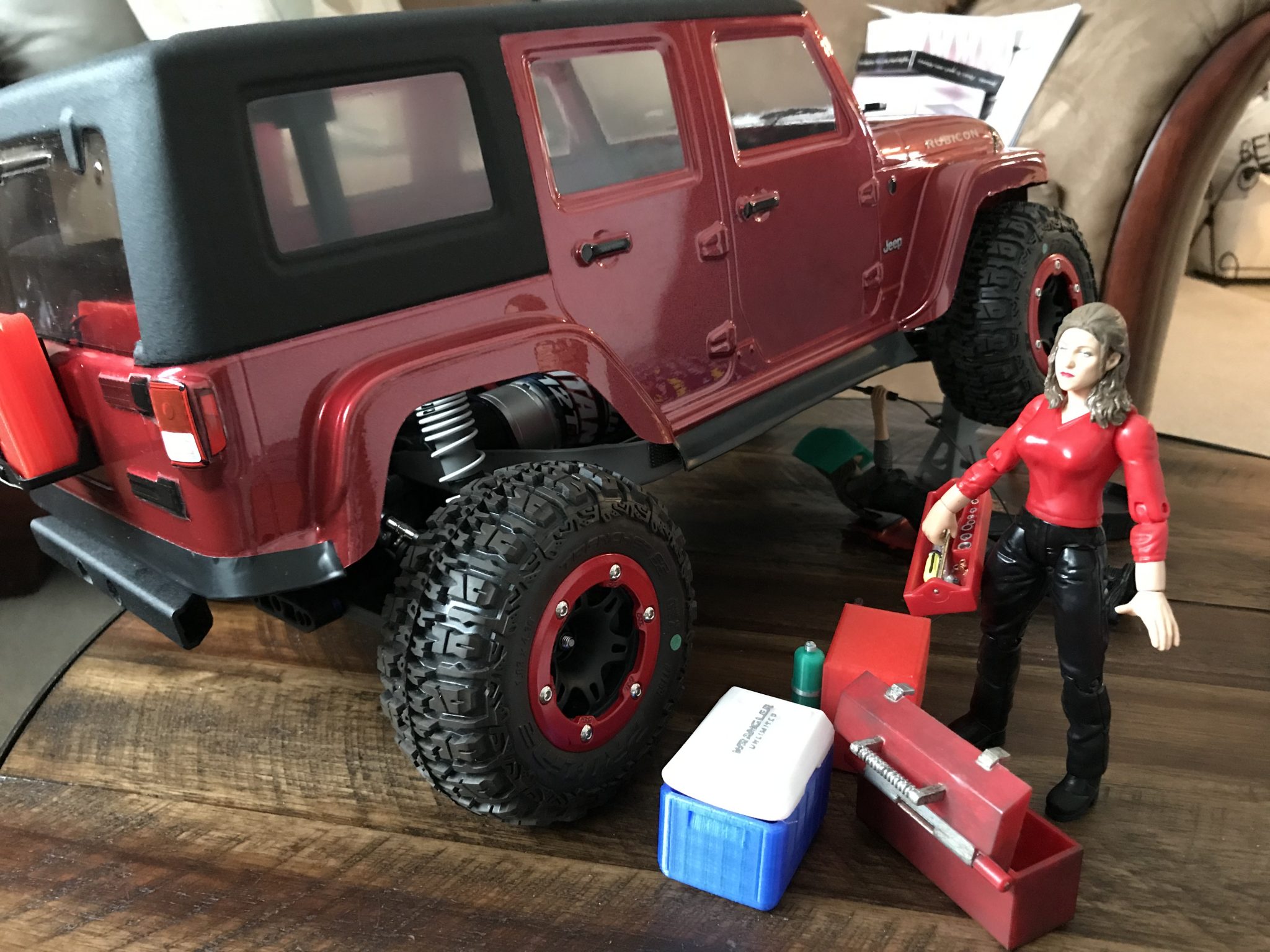
With the Jeep body painted, I just needed to add a couple more details…
Fenders
With the tires slightly wider than the TRX-4 249mm width, I wanted to make sure the Jeep body didn’t look too skinny. I found these rubber fender flares on eBay which were originally designed for a Cherokee XJ body, but would likely fit the JK Rubicon Unlimited just as well.
I left some of the lexan overhang on the fenders purposefully to attach these fenders.
Continue reading →
Here are the other miscellaneous settings I’ve done with my new XPS13 Developer Edition. It doesn’t cover all the settings I like, just the ones that seem to be particular to this laptop.
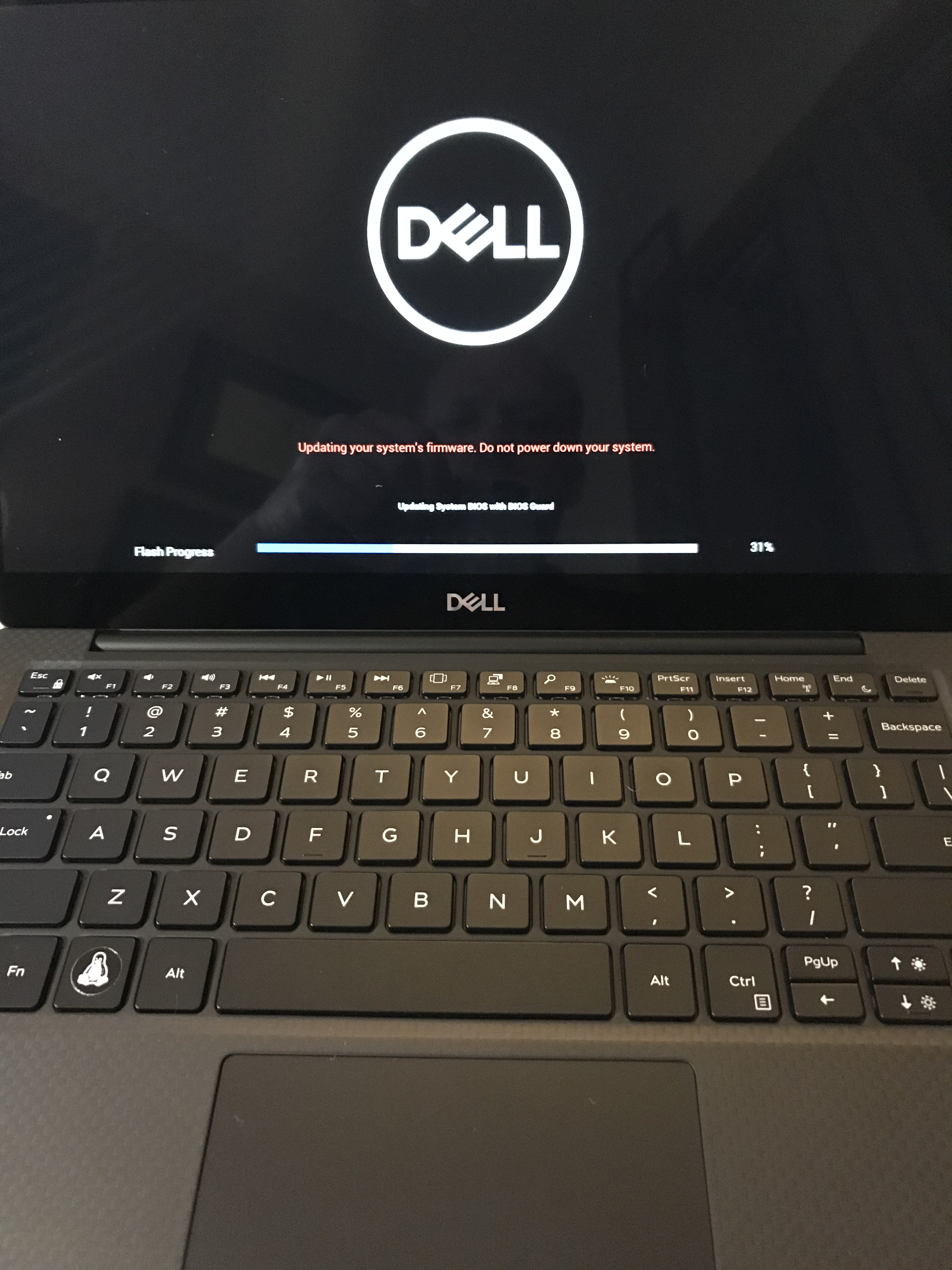
My favorite feature by far is the built-in firmware update functionality:
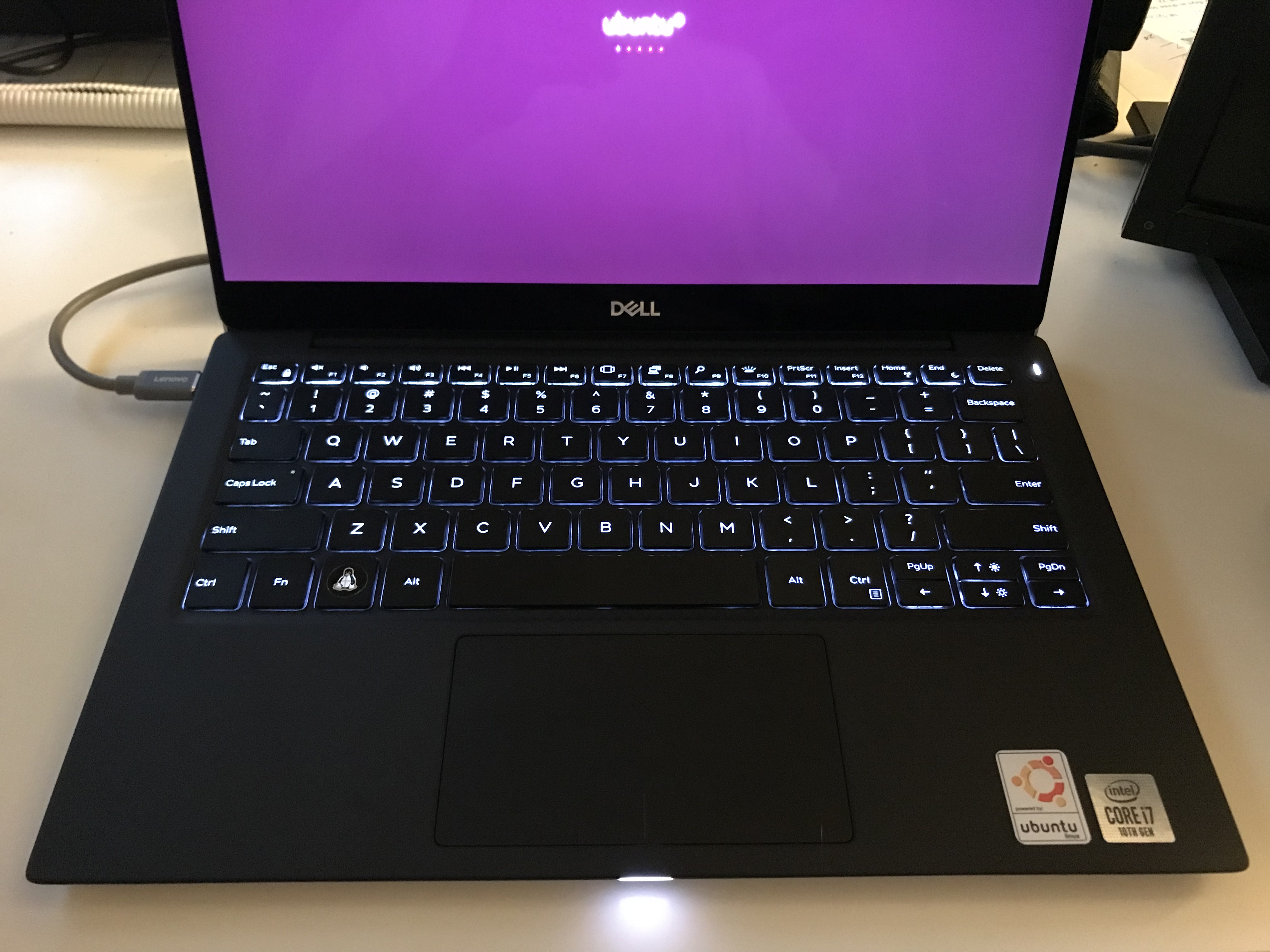
The light at the bottom/front of the case isn’t well explained. It turns solid white during charging. It blinks white occasionally and what that means still remains a mystery ¯\_(ツ)_/¯
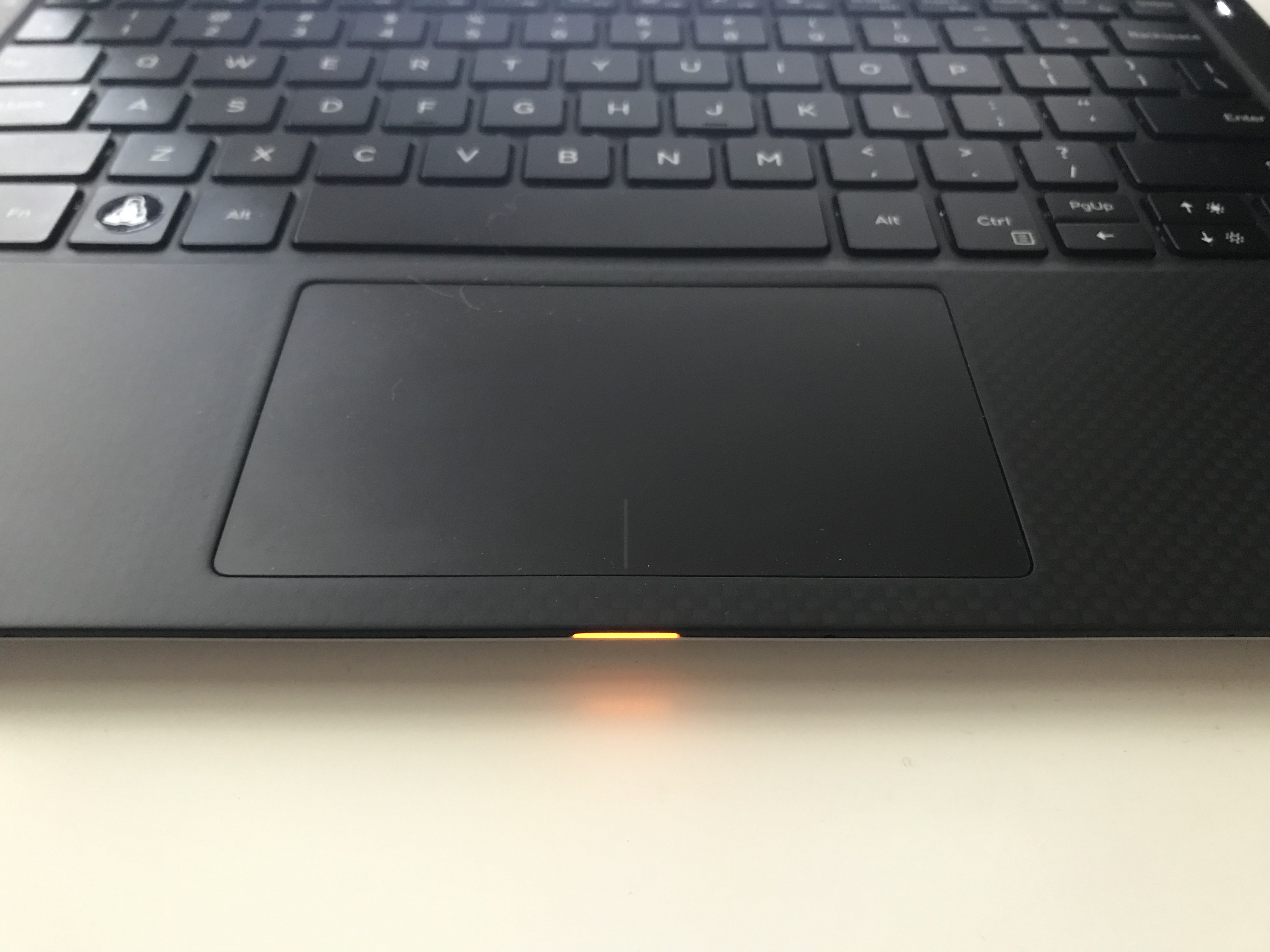
It for sure goes amber when there’s 10% or less battery life remaining.
Settings Reference
Here are other settings in detail that I did in other posts:
Update: I had to add the “normal” localhost addresses for lo as well. Without them in Ubuntu 20.04 when I would resume after suspend/sleep lo would come back online with only 10.254.254.254. Then DNS wouldn’t work because connections to 127.0.x.xfor resolved & dnsmasq would not work.
Then I applied the change with sudo netplan apply. Boot time went from over two minutes to under 20 seconds.
It’s not immediately apparent that the loopback alias is available from looking at ifconfig. Instead use ip address to confirm it’s there:
1: lo: <LOOPBACK,UP,LOWER_UP> mtu 65536 qdisc noqueue state UNKNOWN group default qlen 1000
    link/loopback 00:00:00:00:00:00 brd 00:00:00:00:00:00
    inet 127.0.0.1/8 scope host lo
       valid_lft forever preferred_lft forever
    inet 10.254.254.254/32 scope global lo
       valid_lft forever preferred_lft forever
    inet6 ::1/128 scope host
       valid_lft forever preferred_lft forever
X Applications that Require Root (sudo)
Because I’m running Wayland, apps that you can normally start with sudo (like synaptic) will give this response on the command line:
Unable to init server: Could not connect: Connection refused

(synaptic:29383): Gtk-WARNING **: 13:31:07.736: cannot open display: :0
Here’s one solution, but I instead put the file in ~/.config/autostart/xhost.desktop.
I’ve always been envious of MacBook owners being able to close the lid of their laptop and come back to it days later without losing any charge. I made these changes to better the battery savings, but I still manage about 8% charge loss per day that it’s not fully off.
Are there any configuration changes I missed? This thing is still pretty new, so I’m also still getting used to it. Let me know in the comments if you have any other tip/tricks.
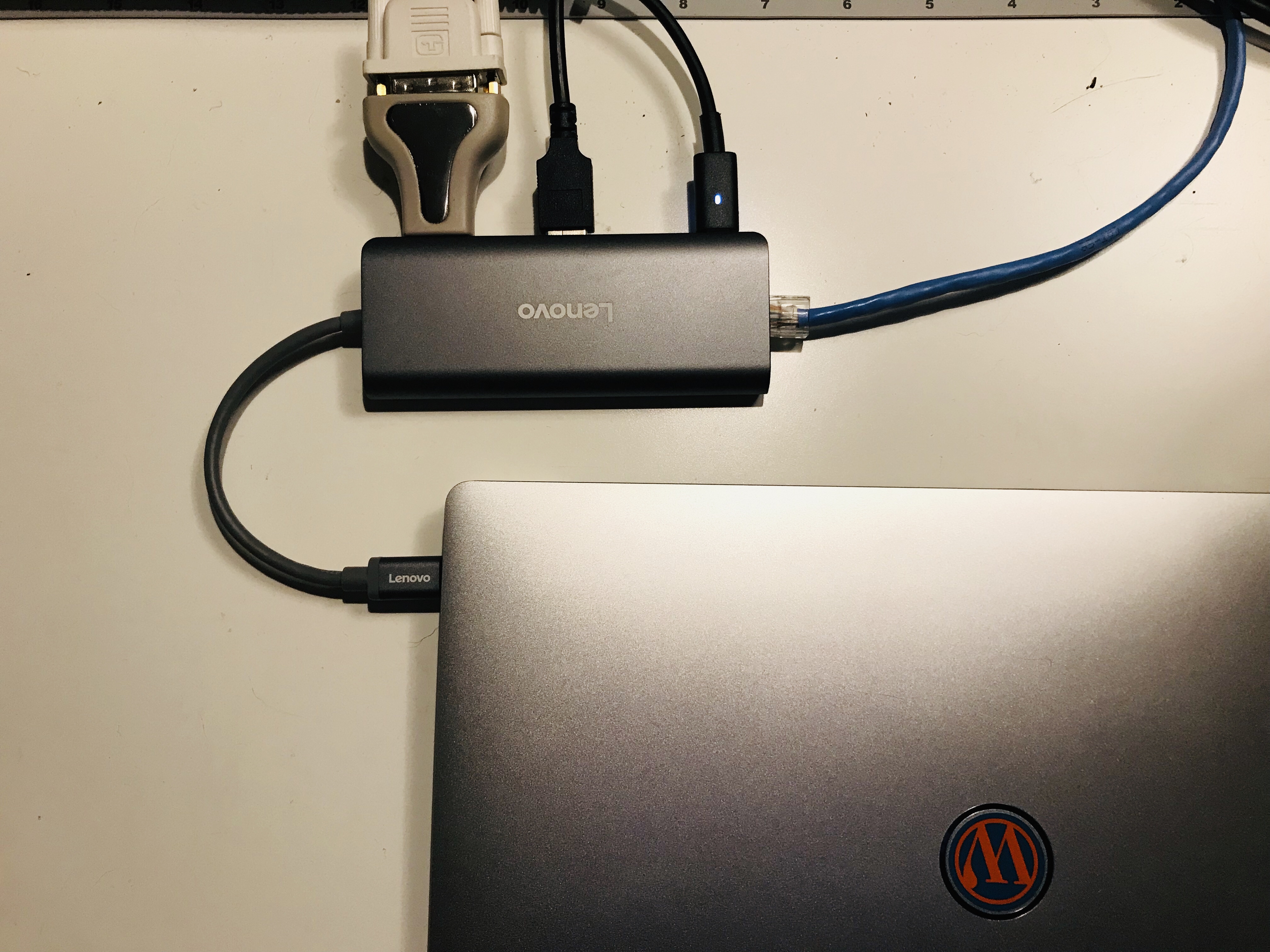
I purchased a Lenovo C109 6-in-1 USB-C hub from Amazon, and here’s its normal state of connection. Clockwise from the top it’s complete with HDMI (adapted to DVI), USB, USB-C Power-in from the Dell power adapter, and Ethernet.
The more I thought about my dislike of dongles, I thought about the alternatives. Laptops are getting so small and that they can no longer fit a standard size Ethernet port on them. So do we get docking stations instead? That sounds decidedly worse. I do like the fact that I can plug the USB-C power input on either side of the laptop (although Dell recommends the upper left port). So, dongles it is.
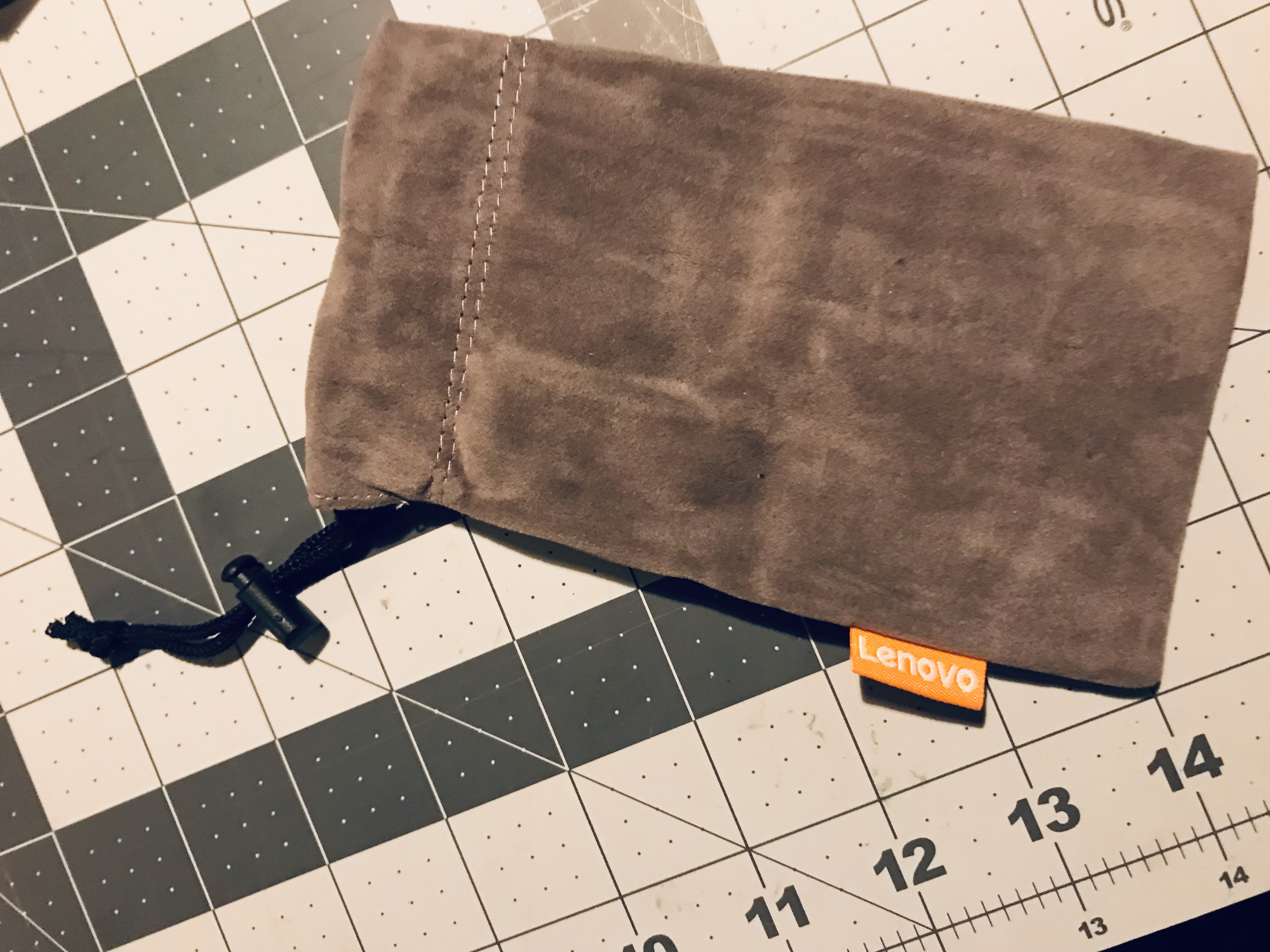
Remember what the laughing guy said about bringing a bag of dongles everywhere you go? Lenovo must have watched the video as well because they included a nice felt bag 😂
A nice thing is about most USB-C multi-function dongles is they have a USB-C port for power delivery, sometimes labeled “PD”. So you plug your power adapter into that, and the multi-function adapter relays power to your laptop. That way there’s only one thing plugged into the laptop – everything else plugs into the dongle.
Dongles in Practice
Here’s where it goes south…. the multiple functions of the adapters don’t always work. I thought it was just my adapter, but after combing through at least 20 different multi-function USB-C adapters on Amazon, I realized all of them suffer from a collection of these issues:
Overheating
Unable to deliver full power from charger
External monitor doesn’t re-initialize when awoken from sleep
Wired Ethernet doesn’t work reliably
Wired Ethernet floods network if dongle has power but it not plugged into computer
My issues are with power delivery, wired ethernet, and the external screen coming back after sleep. 😞
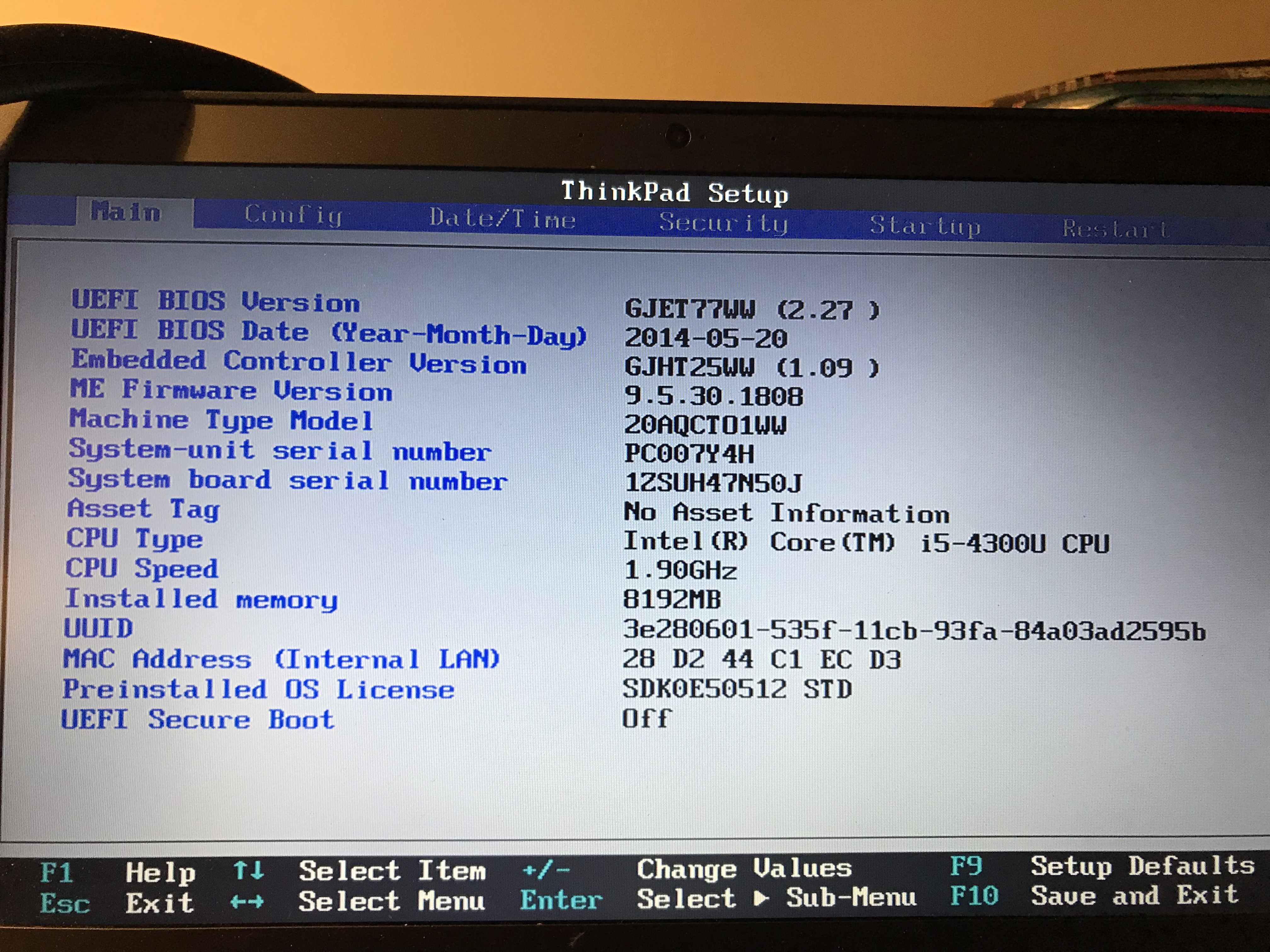
I first noticed the issue when I encountered was this BIOS message after rebooting with the dongle plugged in.
The Lenovo 6-in-1 (and/or the accessories I’ve elected to use) are using enough power to get the BIOS to complain at boot that the power supply is down 10 watts. Thankfully they let you know that this warning can be disabled in the BIOS.
Here’s where you can find the setting in this abomination of a graphical BIOS:
SRSLY – what ever happened to a good old text interface where I could navigate without using the trackpad?!?
Another power issue I had with the Lenovo dongle is it apparently cannot deliver enough power for my particular USB DVD drive. I have a LG Slim Portable DVD Writer and when it’s plugged into the dongle with a disc inserted it keeps spinning up and then acting like it was disconnected. Then it reconnects and spins up again and disconnects ad nauseum. But if I plug it “directly” into the laptop using the included Dell USB to USB-C adapter, it works fine.
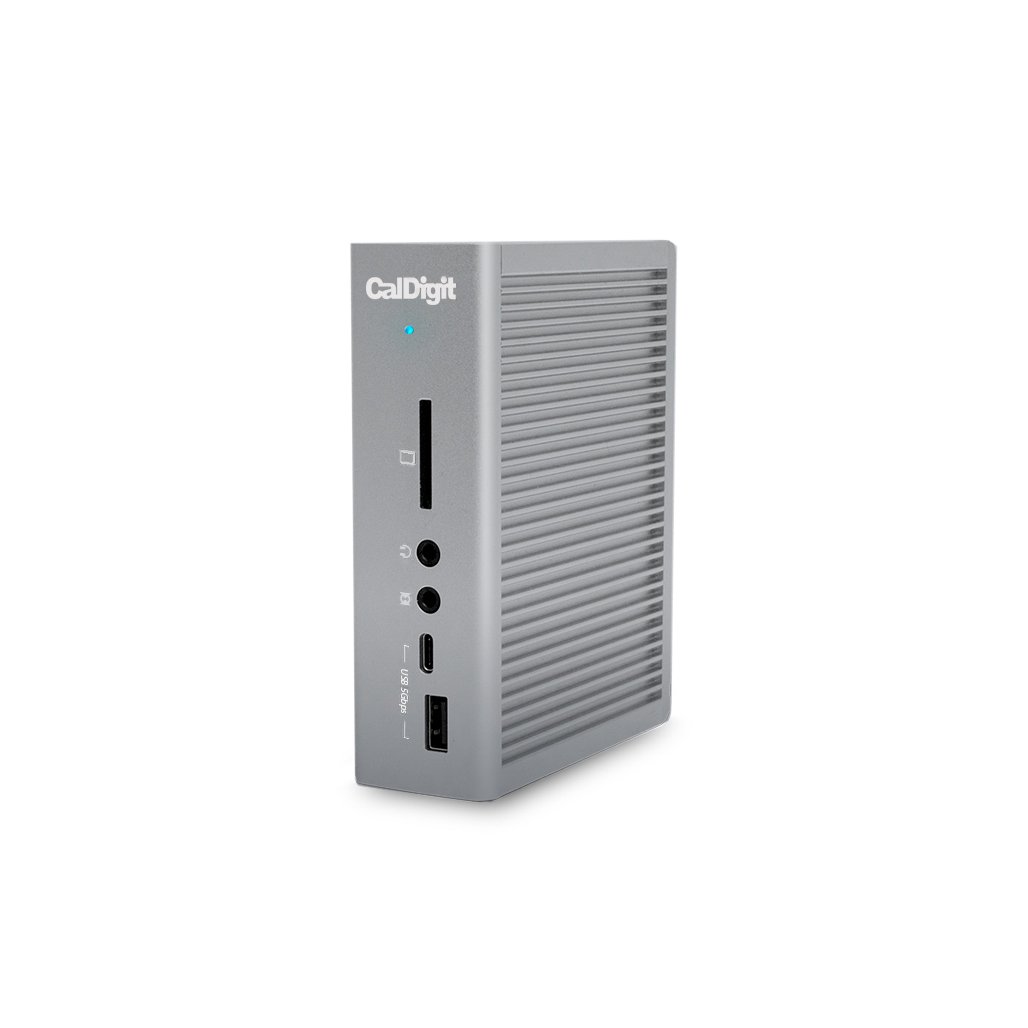
After talking with some co-workers, one solution is to get a monster USB-C adapter like the CalDigit T3 Plus:
So I guess a docking station-esque adapter it is… at least this one is universal and should connect to any laptop with USB-C.
Have you had any luck with multi-function USB-C adapters? Let us know in the comments what you like and what you don’t.
Off-road carpet racing is gaining more and more traction, literally. It is especially convenient to race on carpet surfaces up here in Minnesota – inside in the winter. Also the track can be configured in off-road and on-road configurations, allowing proprietors the opportunity to serve both off-road and on-road racing enthusiasts.
The Team Associated RC10B6 is the first iteration of RC10 kit to come in both a carpet and a dirt version of the car. I had the opportunity to pick up my friend Chad’s B6.1 carpet car as he was switching to the TLR buggy platform. Chad’s B6.1 included everything and the setup was already dialed for carpet. I was glad to drive it as-is at MMR, Dollar Hobbyz, and Thunder Road carpet tracks.
Sometimes dirt is fun too. There’s a clay track called The Toy Box about 45 minutes away in Wisconsin. So I was wondering, what would it take to get my carpet car race-ready for high-grip dirt and clay?
Continue reading →
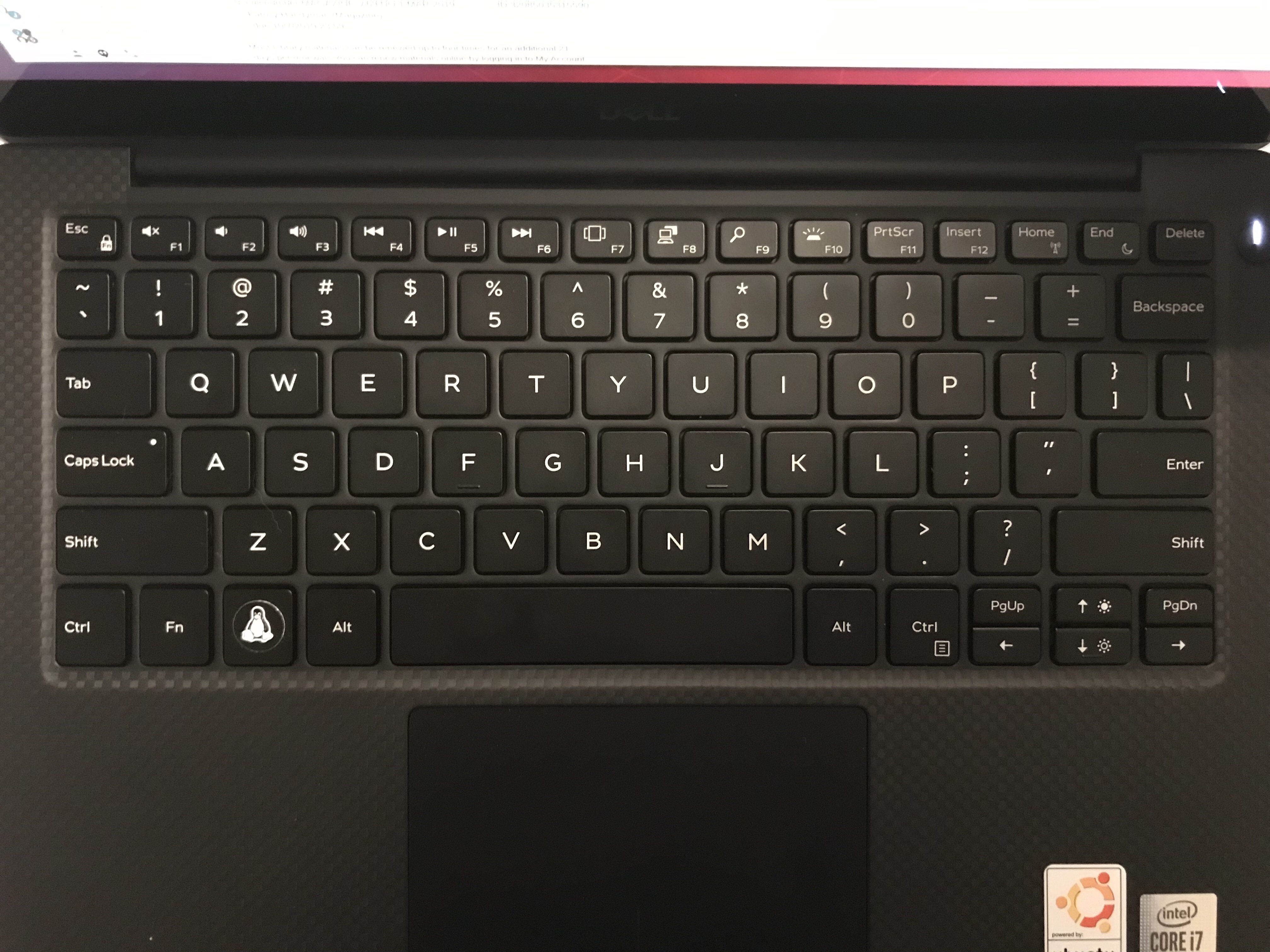
The last time I’m going to refer to it as the Windows key is in the title and in this sentence. We’ll go by it’s rightful name, the Super key. To make mine extra super, I cover the Windows logo with a Linux Penguin logo. I got this one from ThinkPenguin.com:
After using a Mac for about a year, I started to really like the approach of using the Command key for clipboard operations. Mostly because I still use the command line very often and I want to continue using Control+C for cancel. It’s like having your cake and eating it too. Why not put the Super key to use on my Ubuntu system for the same purpose?
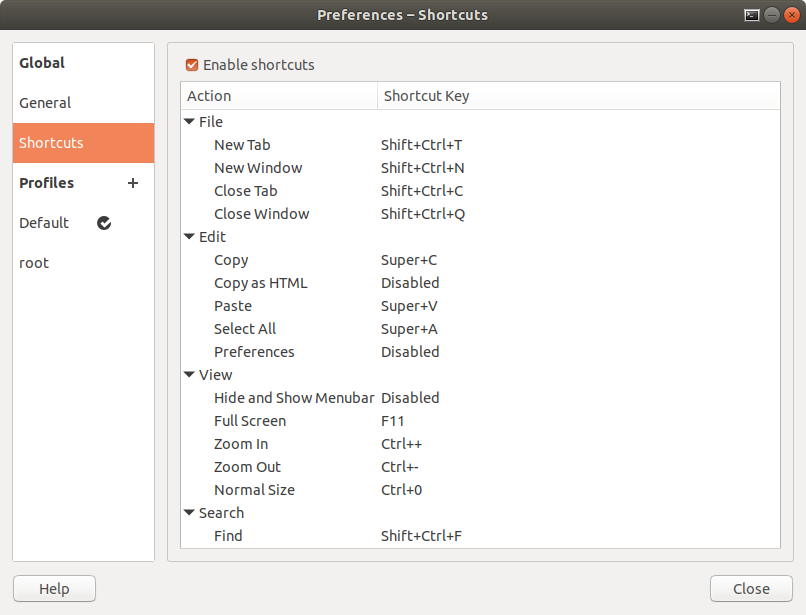
We’ll cover the setup on several different applications. I like to add Cut, Copy, Paste at a minimum as well as Select All and Undo (since the A and Z keys are also in the vicinity). In cases where it’s possible, I’ve also mapped Redo as Shift+Super+Z since some programs would use Shift+Control+Z for Redo. Continue reading →
Programs
I’m not going to cover all of the applications that I use, just a few to get you started 🙂 What I like about my approach is in most cases I’m not overriding Control+A/Z/X/C/V. We’re augmenting it by adding Super+A/Z/X/C/V so using the control key will still work.
Here’s what we’re going to cover:
Gnome (mostly to remove other Super bindings)
GTK
Gnome Terminal
VSCode
Emacs
Nautilus (Gnome’s File Manager)
Gnome
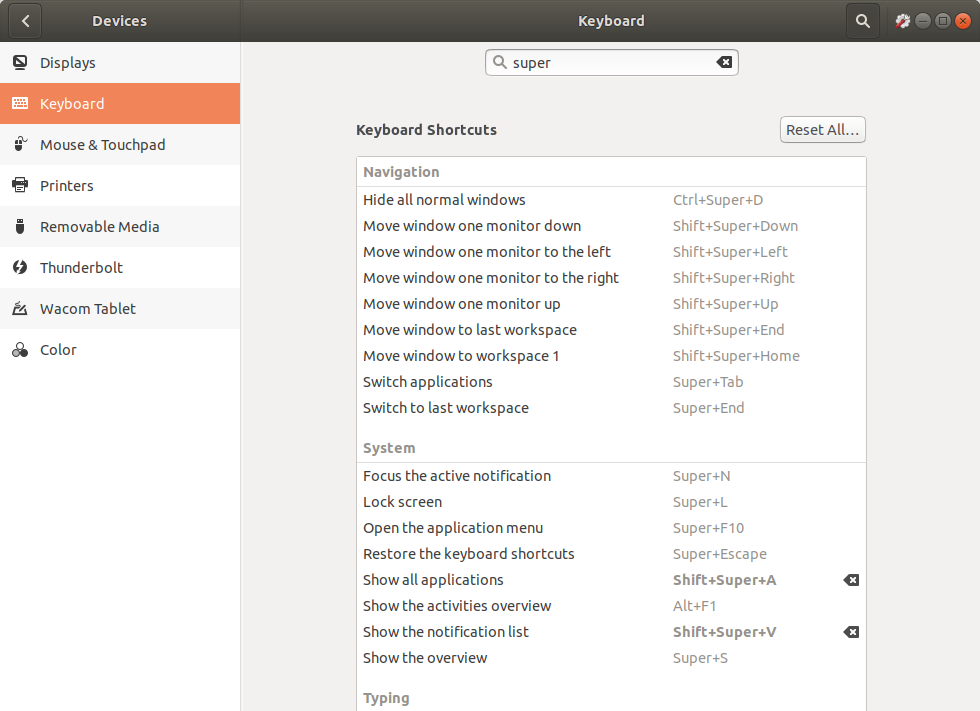
We need to “free up” some of the default Gnome keybindings found in Ubuntu 18.04. Bring up the system Settings and navigate to Devices -> Keyboard. Type “super” there to filter all of the shortcuts to just those that use the Super key.
I simply changed Super+A and Super+V to Shift+Super+A and Shift+Super+V. You can see the customized shortcuts highlighted in bold.
Install Gnome Tweaks:
sudo apt install gnome-tweaks
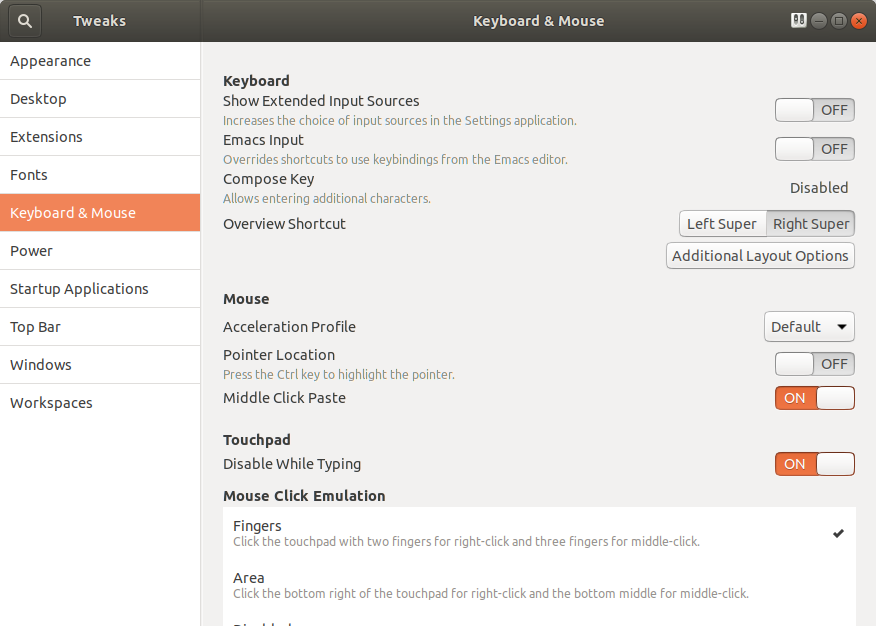
After it’s installed launch Tweaks and navigate to the Keyboard & Mouse section.
Move “Overview Shortcut” from left super to right super, effectively disabling the overview on most laptops since they don’t have a right-side Super key. You can still access this functionality by pressing Super-S. Apologies to anyone that has a right-side Super key 😢
GTK
GTK keybindings will cover many applications – this setting alone might get you about 80% there. It will work on Firefox and Chrome – plus Electron apps based on Chrome like Simplenote and VSCode. Not all bindings will work in all apps (like Select-All, Undo & Redo) but Super-X/C/V should. Plus we’re augmenting the existing Control-A/Z/X/C/V so those will continue to work.
sudo apt install python-nautilus mkdir -p ~/.local/share/nautilus-python/extensions vi ~/.local/share/nautilus-python/extensions/KeybindingRemap.py
This file contains hidden or bidirectional Unicode text that may be interpreted or compiled differently than what appears below. To review, open the file in an editor that reveals hidden Unicode characters. Learn more about bidirectional Unicode characters
You’ll have to restart nautilus for these to take effect. Just log out and log back in to put the settings into action.
Looking Ahead
The way to do this has changed over the years from one major release to the next, so I won’t be surprised if some configurations are different for Ubuntu 20.04 LTS, but we’ll just have to wait and see. If you have any additional apps and configurations you’d like to add, let everyone know in the comments!